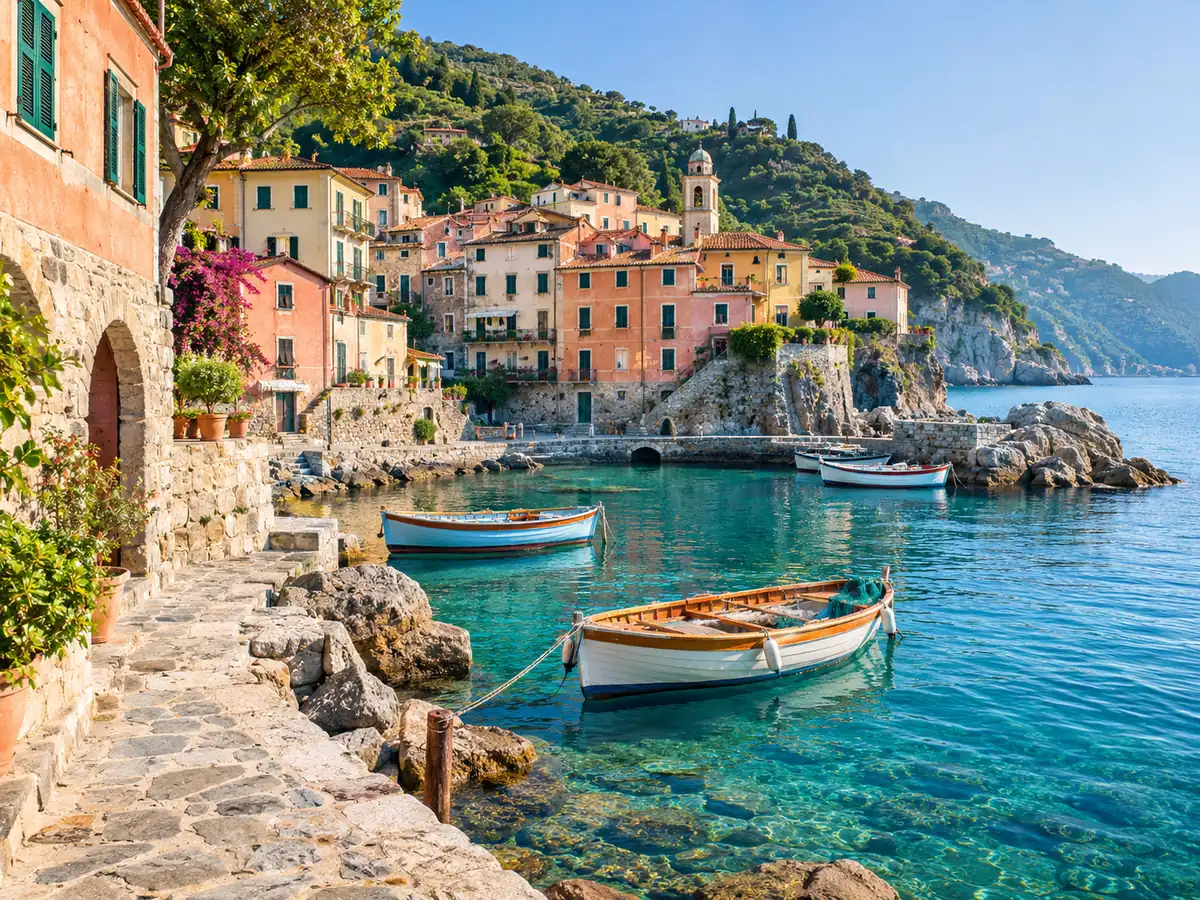
A landscape for a widescreen wallpaper
Give a vertical lake or mountain photograph a wider setting. Check the horizon, shoreline and tree shapes where the new border joins the source.
AI image extender
Give a tightly framed photo more space without squeezing the subject or cutting away another edge. Choose a square, portrait, widescreen or custom canvas and use AI to continue the surrounding scene. Keep the source for comparison and inspect the generated border before saving.
JPG, PNG, WEBP · up to 15 MB · 40 megapixels
Drop a photo here, or paste from your clipboard
No signup. Private by default.
AI processing uploads your selected photo securely. Files in Enhance Photo storage expire within 24 hours; upstream retention is described in our Privacy Policy.
Illustrative examples show the editing goal. Compare processed results with your original photo.
These scene guides explain what to check alongside the approved extension preview. New scenery is generated, so it should not be treated as a record of what was outside the camera frame.
Give a vertical lake or mountain photograph a wider setting. Check the horizon, shoreline and tree shapes where the new border joins the source.
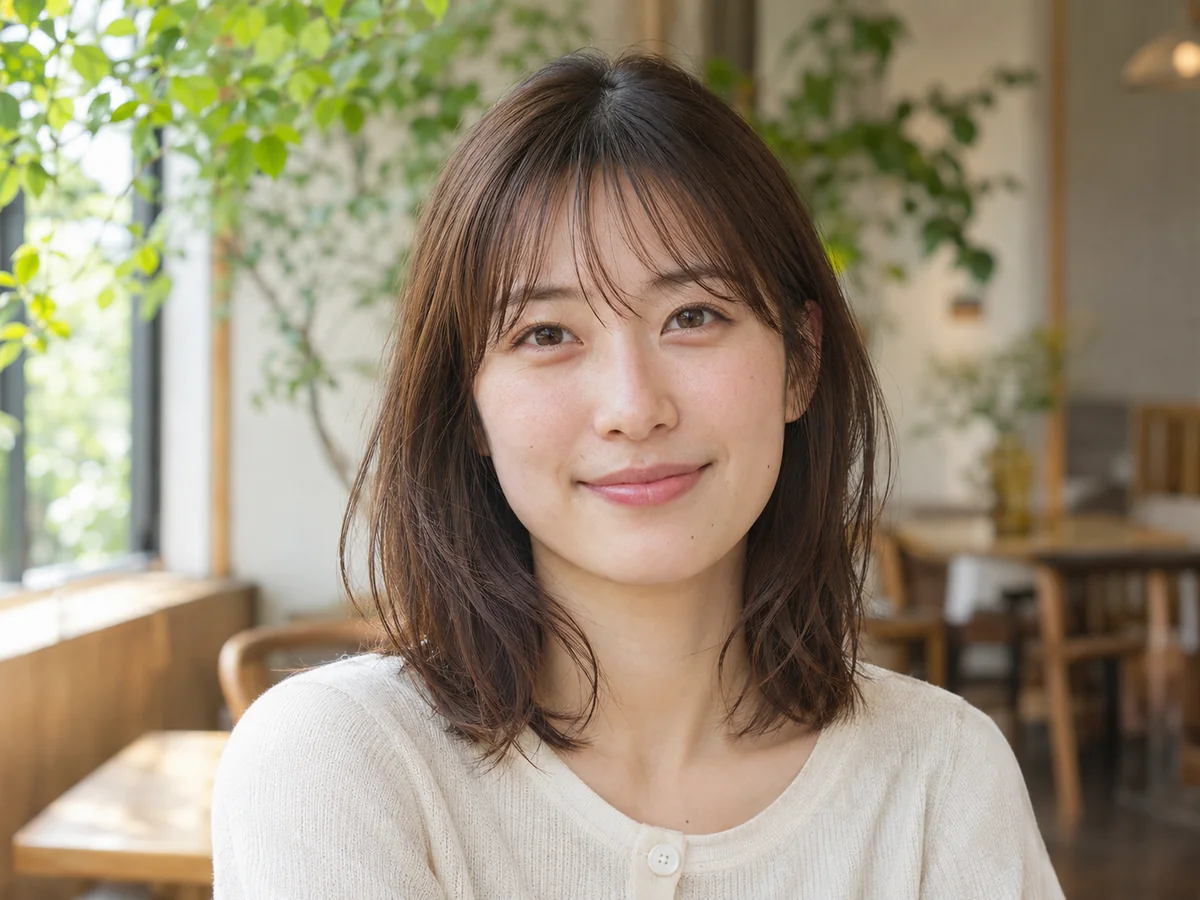
Prepare a square avatar or portrait feed image with breathing room around the head and hair. Compare facial details and the outline of the subject.
Create surrounding space for typography that you add afterward. Inspect the product’s shape, label and cast shadow before using it in an advertisement.
Extend a room or building into a wider layout. Straight walls, furniture edges, reflections and vanishing points need a close visual check.
Add margins around an illustration for a wallpaper or spread. Check whether linework, color blocks and brush texture remain consistent.
Open a street or beach scene into a landscape composition. Look for repeated people, implausible objects and discontinuities in the light.
Select, drop or paste one JPG, PNG or WebP up to 15 MB and 40 megapixels. Start with the best available original, including as much useful edge detail as possible.
Choose 1:1, 4:5, 16:9 or 9:16, or select Custom and enter width and height. Add a short optional edge hint and choose your output format.
Check the displayed credit cost, then start the run. Compare the result with the original and inspect the new edges, subject and geometry before downloading.
Generate surrounding scene area for a different frame, rather than stretch an existing photograph.
1:1, 4:5, 16:9 and 9:16 presets, plus custom width and height fields.
Each extension run uses 6 credits. The rate is displayed before you start.
A short edge hint can describe the surrounding material or setting. It is not required.
One JPG, PNG or WebP up to 15 MB / 40 MP; choose JPG, PNG or WebP output.
AI processing uses a provider. Uploads, generated files and download links have a 24-hour deletion window.
AI image extender
Changing a portrait image into a wide rectangle by stretching changes the shapes inside it. Cropping removes content, while a plain border adds space without continuing the scene. Outpainting takes a different approach: it estimates a surrounding environment from the visible edges.
AI image extender
Use the controls already in the workbench to describe the surrounding canvas. A source photo is required.
AI image extender
Aspect ratio describes shape, not sharpness. Check the platform’s current layout requirements and reserve space around important content.
AI image extender
A clear source and a modest framing change give you a more useful result to evaluate.
AI image extender
Separate cleanup, composition and resolution decisions so you can review each change.
AI image extender
AI image extender
A different frame can make an existing image usable in more layouts, provided the generated area is appropriate for the purpose.
Photo Enhancer can address a soft source before extension. Image Upscaler serves a different purpose after the composition is settled.
Enhance photo quality online. Unblur, sharpen and restore old photos, then upscale to 4K. No signup, no face changes, files deleted in 24 hours.
Open toolEnlarge images for clearer presentations, larger layouts and high-resolution photo projects, with options up to 8K.
Open toolChoose a repair, image treatment or free local conversion for a separate task.
Start with your original image, choose a focused treatment and keep the result that works for you. No signup is needed to select a photo.
Enhance photo